
Guide
How to use ManyChess
A simple explanation, step by step, with pictures.
Signing in
You sign in with a link you get by email, or with a password you choose yourself.
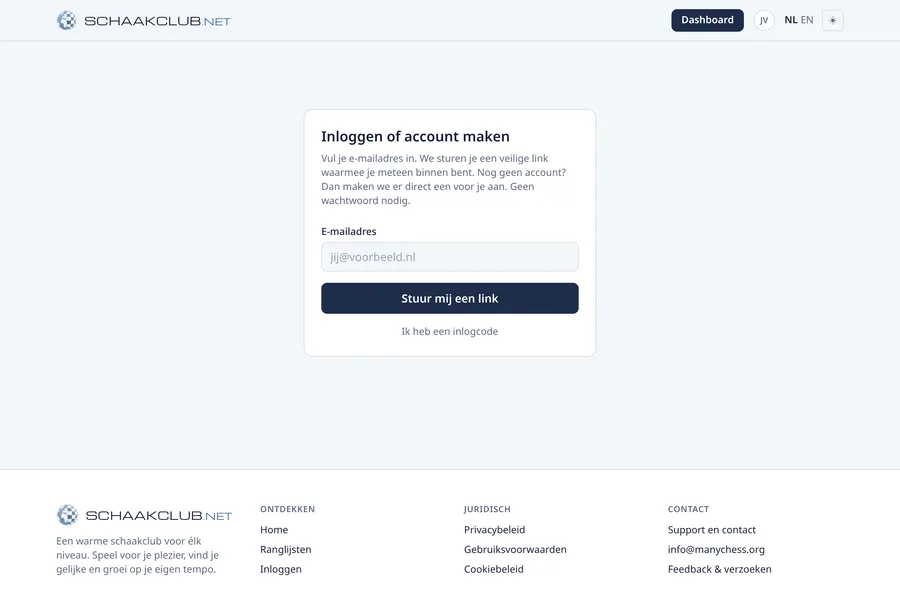
- 1Go to the site and click “Sign in”.
- 2Enter your email address and click the button.
- 3Open the email you receive and click the sign-in link. Done, you are signed in.
On another device? The email also contains a code. On the site click “I have a sign-in code” and type the code.
If you click the link inside your mail program, it often opens in that program's own little browser window. You are then signed in there only, not in the browser you normally use. Does the email take a long time at your provider, or would you rather not do this every time? Then choose “Rather have an account with a password?” at the bottom of the sign-in screen. You get one email to confirm your address, and after that you sign in anywhere with your email address and that password. If you already have an account, set a password on your profile.
1 of 24